
Start with the problem period, then check the adjacent larger scale to avoid mistaking a local jump for a long-term trend.
A worked example
Worked example: a seven-day chart shows a noticeable jump, so a user checks the wider context. They switch to a month, open the original date in the calendar and notice that the measurement was taken at a different time. They do not move the point to another day or treat chart scale as an explanation. For a consultation, they select dates according to the question rather than the smoothest-looking line. The yearly view helps locate episodes while keeping visual impressions separate from actual entries.
What to do
- 01
Open 7 days to check recent entries.
- 02
Go to month or 3 months for trend.
- 03
Use year to find larger periods.
- 04
Open specific dates via a calendar for context.
Common mistakes
- Compare the slope of graphs with different scales visually.
- Ignore the number of points.
- Consider the line a forecast of the future.
Scale changes the view, not the source data
A short range is useful for checking recent input, while a longer one helps navigate periods. Whenever switching, first check the date boundaries and available entries: sparse records do not become daily observations on a wider chart. Comparisons need comparable conditions and an understanding of gaps. A chart does not prove a cause or predict a medical outcome. If a point raises a question, return to its date and context. Statistics and PDF periods are selected in their own interfaces; check report settings separately instead of assuming that the selected chart scale carries over automatically.

How to check the result
- The selected period boundaries are clear.
- Sparse entries are not mistaken for daily measurements.
- An unusual point is checked in the calendar.
- The PDF period is selected separately when exporting.
For the document, review choosing a report period.
How this works in Vesometr
Vesometr offers five fixed ranges without server processing or forecasting.
Sources and fact checking
App features were checked against Vesometr 1.2.2. External sources explain general guidance, rather than validating individual medical conclusions.
- Vesometr: official release — Application version and official download channel.
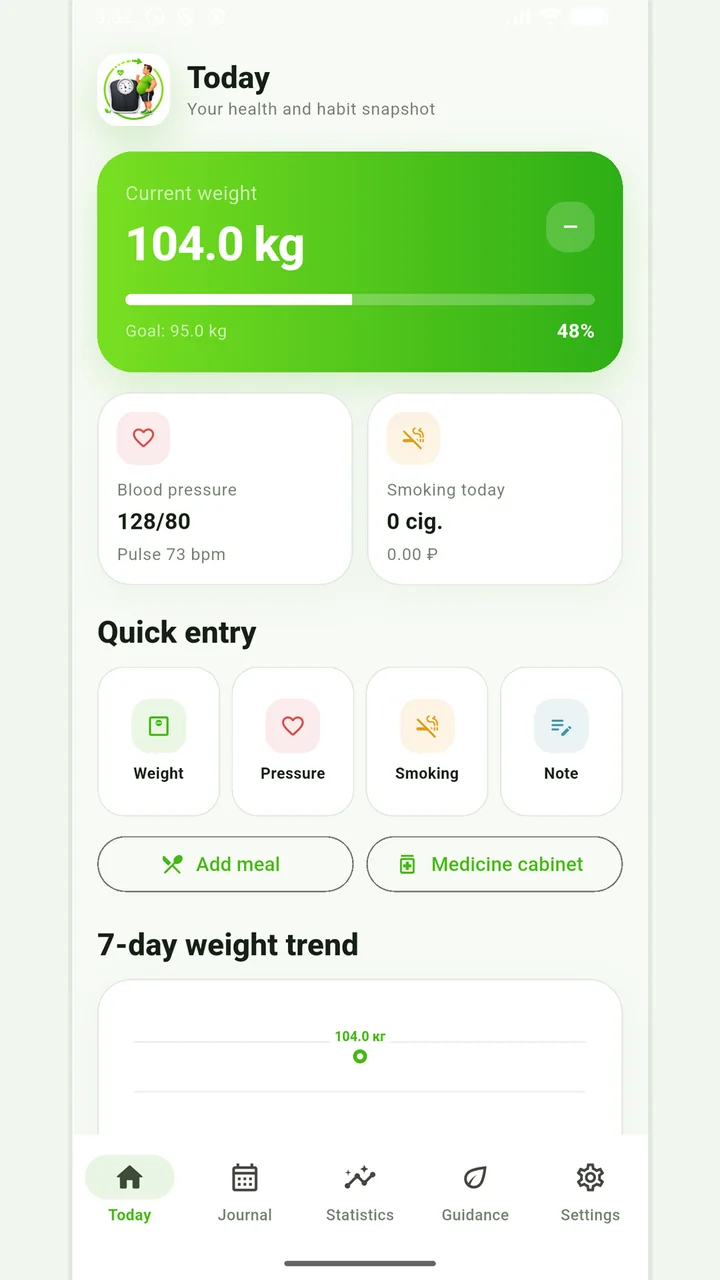
Vesometr 1.2.2
The main application tools and the current Android build.
The app organizes entries and reminders, but cannot verify a treatment plan or replace professional advice.
Medical disclaimer