
Check Android notification permission, the reminder switch, weekdays and time. Course text does not automatically end a schedule, and an alert does not confirm a dose taken.
A worked example
Worked example: after changing phones, a medication card and reminder time are present but no alert appears. The user checks Android's notification permission and app settings first, then the reminder switch and selected weekday. They do not create duplicate cards. Text saying “course until Friday” is not treated as an automatic stop date. They test an appropriate entry reminder without changing actual treatment instructions. A delivered alert is not automatically counted as a dose taken or used to decide to take an additional dose.
What to do
- 01
Check notification permission and settings specifically for Vesometr.
- 02
Review the reminder switch, weekdays and times in the card.
- 03
Review phone modes and app-specific restrictions using the device maker’s instructions.
- 04
Run one clear delivery test without changing treatment and remove temporary settings.
Common mistakes
- Creating duplicate reminders before checking permissions.
- Expecting course or schedule text to stop alerts automatically.
- Treating an alert as proof of a dose or a reason to take an additional dose.
Check permission, schedule and delivery separately
Android 13 and later require user permission for notifications. Also review the phone's notification settings, the app channel and modes that may hide alerts; menu names vary by device. In Vesometr, the reminder switch, selected weekdays and times determine the saved schedule. Textual dosage and course fields do not automatically end it. Ask a clinician about changes to actual treatment or a missed dose. Do not modify a medication regimen to diagnose notification delivery. Establish one understandable test first, then remove temporary settings so they do not create extra alerts.

How to check the result
- Android permission is checked on the current phone.
- The switch, weekdays and times are reviewed.
- Course text is not mistaken for an automatic stop date.
- Temporary settings are removed after testing.
- An alert is not counted as a confirmed dose.
If this started after changing devices, review the complete new-phone transfer.
How this works in Vesometr
Vesometr schedules reminders on the device. Android and the phone manufacturer may restrict background delivery.
Sources and fact checking
App features were checked against Vesometr 1.2.2. External sources explain general guidance, rather than validating individual medical conclusions.
- Vesometr: official release — Application version and official download channel.
- Android: notification permission — On Android 13 and later notifications require user permission.
- Google: controlling Android notifications — Notification settings and device-dependent menu options.
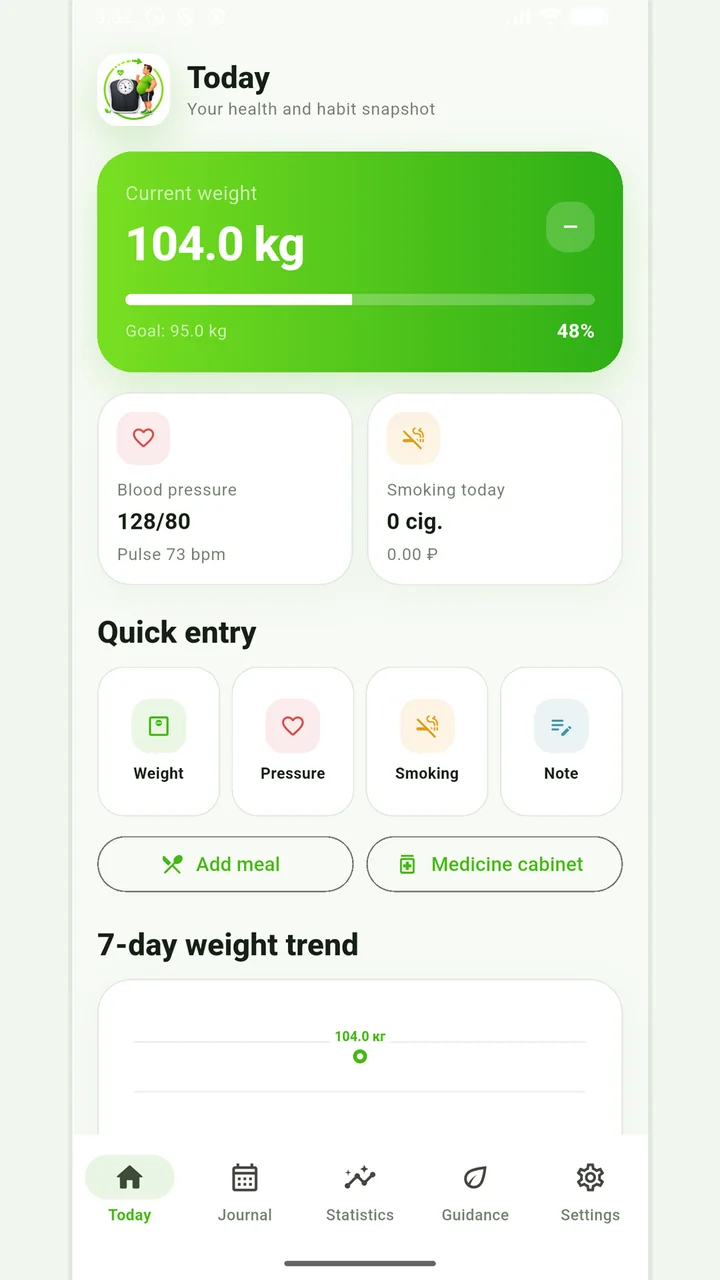
Vesometr 1.2.2
The main application tools and the current Android build.
The app organizes entries and reminders, but cannot verify a treatment plan or replace professional advice.
Medical disclaimer